Tags: prores 4444 converter, encode prores 4444, decode prores
4444, convert to prores 4444, convert video to prores 4444, converting to
prores 4444, prores decoder, prores encoder, mxf to prores, avi to prores, mpeg
to prores, mp4 to prores
Overview
Apple ProRes is a standard in the video world. ProRes 4444,
the fifth version, building on the other ProRes versions, adds support for
transparency information, which is called the "Alpha channel". It’s
clear that ProRes 4444 is the absolute "best" in terms of quality if
storage capacity is not considered. While ProRes is not a cross platform codec,
if you’re on a Window’s PC then you’re almost out of luck when it comes to
encoding ProRes 4444.
It is exciting that Bigasoft, the world's leading media
software company, introduces ProRes Converter, a video encoder enabling
ProRes 4444 on March 22, 2013. Bigasoft ProRes Converter is a profession ProRes
4444 encoder that allows you to automate the encoding process to ProRes 4444 on
Windows and Mac.
Bigasoft ProRes 4444 Converter is the good tool to help you
easily convert video to Apple PreRes 4444 to Final Cut. The following article is a step by step guide
on how to convert video to Apple PreoRes
4444 on Windows and Mac with the professional ProRes 4444 Converter.

Preparation: Free Download ProRes Converter
Free Download Bigasoft ProRes Converter (for Windows, for Mac)
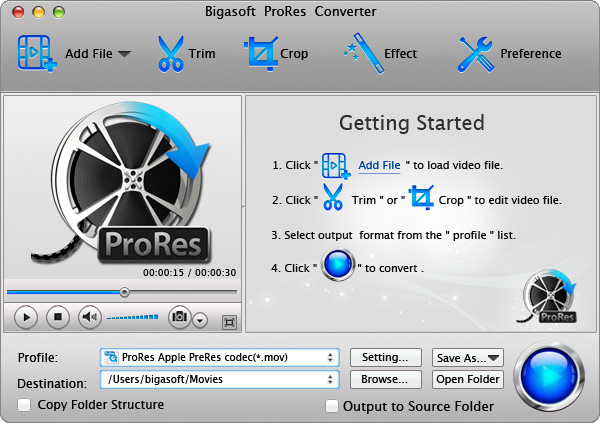
install and run it, the following interface will pop up.

Step 1 Add any clips to ProRes Converter
Simply drag your every shot to ProRes Converter. You can
also click "Add File" button to load the clips to ProRes Converter.
Step 2 Choosing an Apple ProRes Codec for Transcoding
This step can be skipped if ProRes 4444 is the desired Presents
that many users prefer to render to.
Press "Setting..." button, the "Advanced
Settings" Window will pop up right beside the main window. In the "Advanced Settings" Window, click
"Advanced" tab, and then go to "Video" column, click
"ProRes 4444" tab on the right side of Profile.
Change the ProRes Presents by choosing from the drop-down
list. There are 5 options including ProRes 422 Proxy, ProRes 422 LT, ProRes
422, ProRes 422 HQ, and ProRes 4444.

Step 3 Transcoding
Press on the big "Convert" button. Bigasoft ProRes
Converter will start encoding to Apple ProRes.
Bigasoft ProRes supports converting video to ProRes 4444 with both HD quality and standard quality.
Bigasoft ProRes supports converting video to ProRes 4444 with both HD quality and standard quality.
HD

Standard

Step 4 Start Enjoying
Once it’s done, click "Open Folder" button to open
transcended media in QuickTime. Enjoy your newly encoded shots now!
Converting video to Apple codecs including ProRes 4444,
ProRes 422 (HQ), ProRes 422, ProRes 422 (LT), and ProRes 422 (Proxy) is just
that simple. Get the brand-new Apple ProRes Converter to convert your file to
Apple ProRes to QuickTime now!
Workflow for RED .R3D:
After shooting REDCODE media, connect the camera’s hard disk
drive to your computer, or insert the CompactFlash card into a card reader
connected to your computer.
Download your files to the hard disk storage device.
Drag the clips to Bigasoft ProRes Converter.
Bigasoft ProRes Converter will encode to ProRes codec for
the rest.
Workflow for DSLRs, GoPro, and other single file video formats:
Drag the files you want to encode into Bigasoft ProRes
Converter.
Sit back and let Bigasoft ProRes Converter do the work.
Resources
http://www.bigasoft.com/prores-converter-mac.html
http://www.bigasoft.com/articles/convert-video-to-prores-4444-and-422.html
To find out more Bigasoft Solutions to enjoy your new digital life, you can go here.